|
Setting up Indicators
Plotting indicators on charts is one of the most fundamental features in a system
development product. Fortunately, this is an easy task in RightEdge.
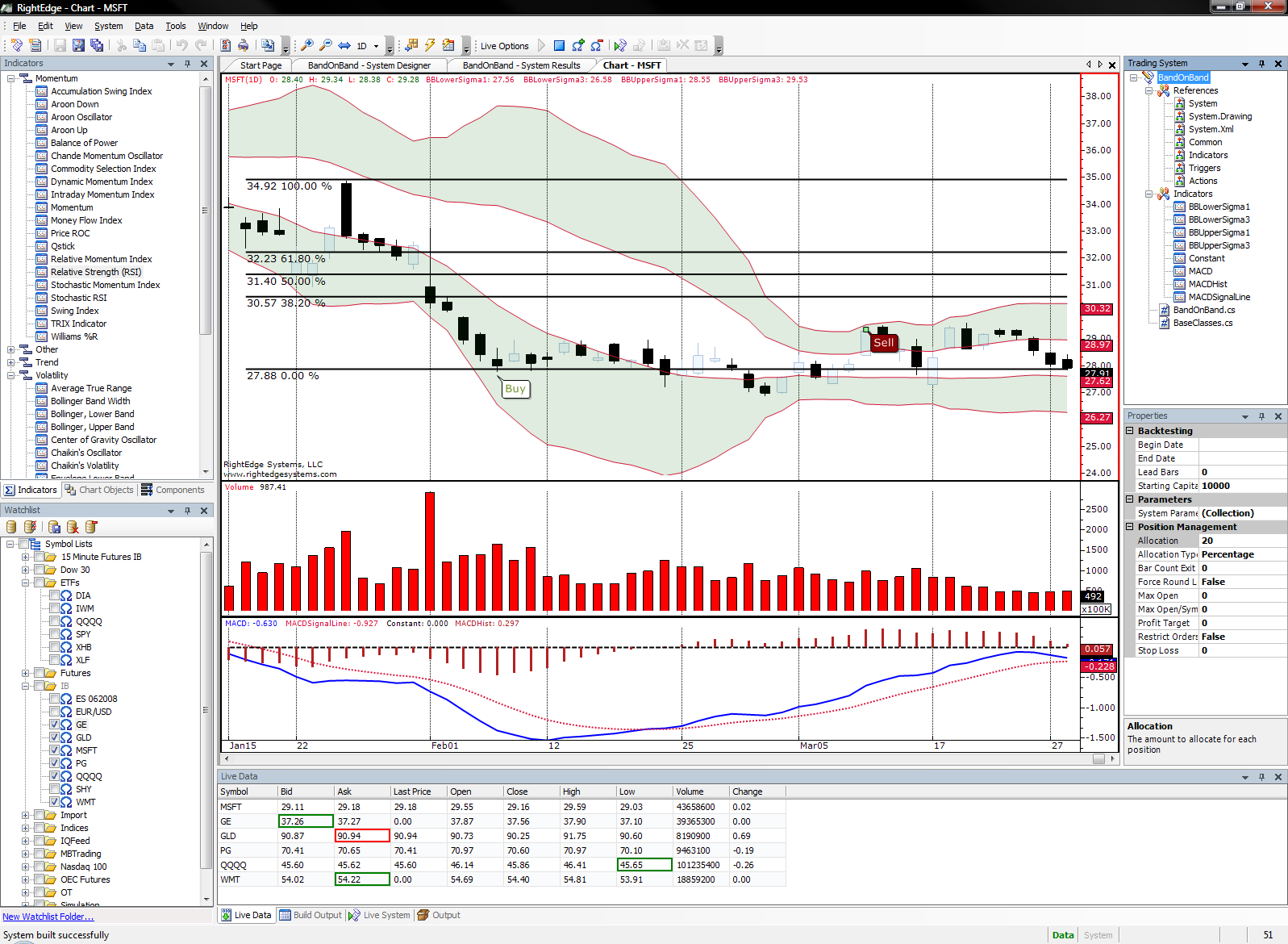
To begin displaying a chart, double click any symbol in the Watchlist.
Now any indicator can be selected from the Indicator Pane as shown below.
Indicators can be double clicked in the Indicator Pane
or dragged and dropped
directly on to a chart. In this example, we'll drag and drop a Relative Strength
(RSI) indicator onto the chart. Since RSI requires some parameters, a dialog
opens as shown below.
Select the desired parameters and click OK. The indicator is now plotted on
the chart.
You may modify indicator parameters later be selecting the indicator. To select
the indicator, click on the indicator line. At this point, the indicator properties
will display in the Property Pane as shown below.
Settings can be changed inline and when you hit Enter, the chart line will update
immediately.
Back to the top
Back to the Main FAQ
Using Chart Objects
RightEdge provides a number of useful objects to place on a chart. The objects
can be as simple as lines or text all the way up to Fibonacci retracements.
To begin displaying a chart, double click any symbol in the Watchlist. This
will display a historical chart that chart objects can be placed upon. Next,
select the Chart Objects pane. If you cannot locate this pane, it may have
been hidden. To bring it back to current view, select Chart Objects
from View menu.
Chart objects are broken down into categories, but all available chart objects are
shown under the All Chart Objects heading. Click once on the All
Chart Objects heading and drag and drop any item from this pane onto the
chart itself. Once an object is placed on the chart, the settings of the object
may be manipulated by selecting the object (click the object once with the left
mouse button) and changing the properties within the Properties pane.
If the Properties pane is not shown, select Properties Window from the
View menu.
The example below shows the properties of a rectangle object.
All objects have the ability to have their color changed. We changed the rectangle's
color from black to dark green. If an object supports filling, as the rectangle
does, you may also manipulate the fill color and transparency.
Back to the top
Back to the Main FAQ
Removing Indicator
and Chart Objects
After indicators or chart objects are added to charts, it is sometimes desirable
to remove them. The key to doing this is selecting the indicator or chart
object itself. This is done by clicking on the object once with the left mouse
button.
The chart below shows a simple moving average indicator selected.
Once the item is selected, it will have a series of yellow squares indicating a
selected state. At this point, simply hit the Delete key to remove the series.
The same is applicable to a chart object. When a chart object is selected,
it has a series of green squares at end points. For example, a line object
will have green squares at the beginning and end of the line. A rectangle
will have these selection squares at each of its four points.
Back to the top
Back to the Main FAQ
Saving Chart
Settings
RightEdge has the ability to save charts for later application. More specifically,
it saves the chart's indicators and the associated indicator values so that they
can be applied to another chart.
The first step is to create a chart with the indicators and the settings that you
desire. Once this is configured, you can save the chart settings in RightEdge
by right clicking on the chart itself and selecting the Save Chart Settings...
menu item. The Save Chart Settings will dialog will prompt for a name
for this saved chart. This name is defined by the end user, but must be unique.
In this example, we're going to save our simple moving average (50 periods) chart
with the chart name of "SMA". Once you click OK, this
chart has now been saved. To recall a saved chart, right click on any symbol
in the Watchlist pane as shown below.
Select Quick Chart (With Chart Settings)
and notice that the chart settings that were just saved appear in this list.
The number of chart settings that can be saved is unlimited.
If a chart is already opened in the document area, saved chart settings can be applied
to that chart by right clicking on the chart and selecting the desired saved chart
name from the Apply Chart Settings menu item.
You can change your saved chart settings later by right clicking on any open chart
and selecting the Manage Chart Settings... menu item. Click this
menu item to display the Chart Settings dialog which will allow indicator
parameters to be modified.
Back to the top
Back to the Main FAQ
Stacking one chart on top of the other
Often times it is desirable to see two or more charts in the document area.
This can be accomplished by stacking charts or viewing them side by side.
To begin a stack operation, click the tab area of the document with the left mouse
button and begin to drag the tab. When the drag operation begins, docking
arrows will be displayed as shown below:
In this example, the MSFT tab was dragged and the mouse cursor was brought to the bottom dock arrow. Release the mouse the button on this dock arrow to dock MSFT below AMZN as shown below.
To snap the chart or document back to the document area,
simply grab the title bar portion of the floating window and drag it back to the
document area.
Each chart scrolls independently.
Back to the top
Back to the Main FAQ
|