RightEdge - The Ultimate Backtesting and Trading System Development Platform

Developing Trading Systems in RightEdge

Developing Trading Systems in RightEdge

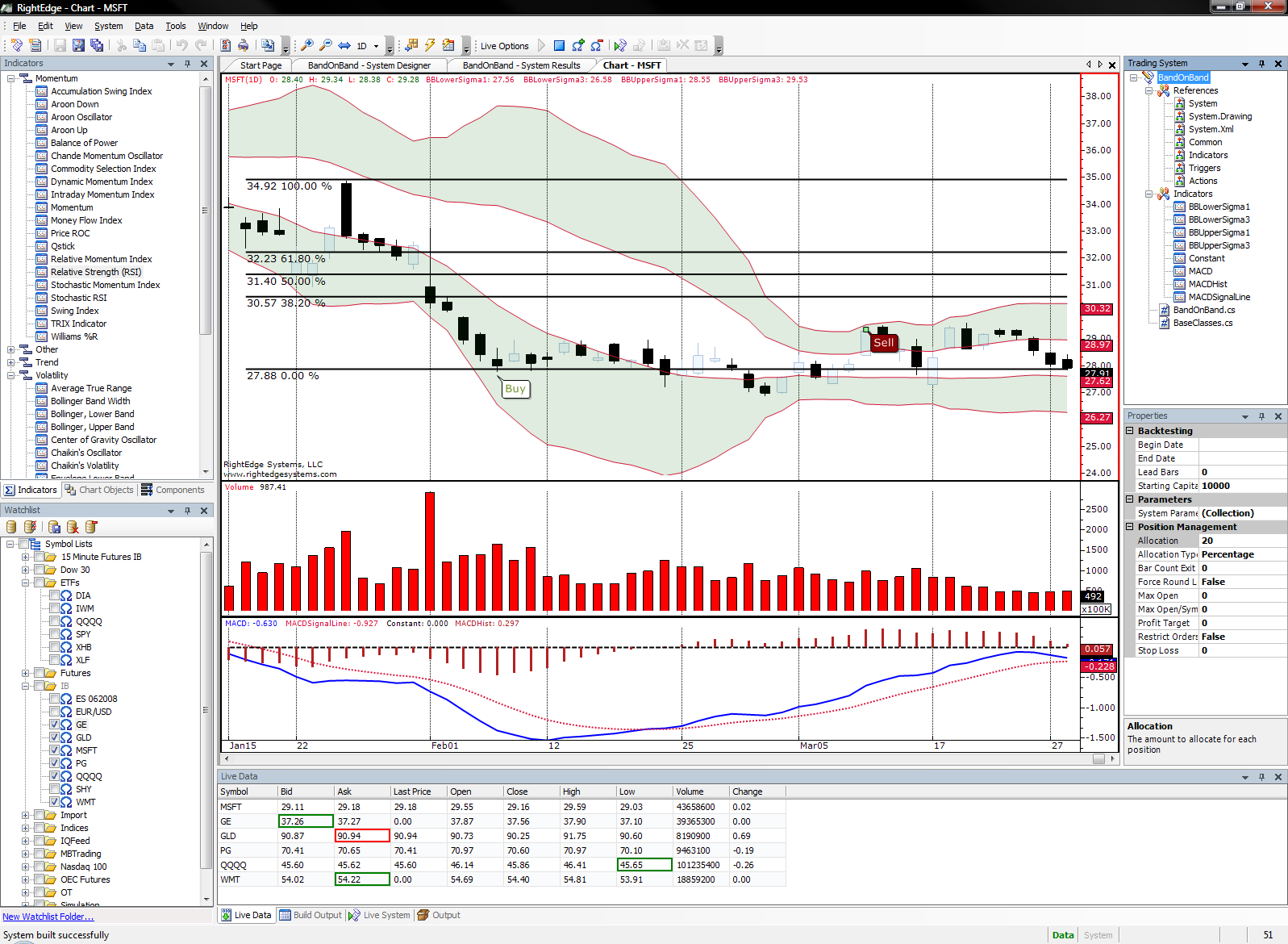
RightEdge supports trading systems written in Visual Basic.NET or C#.  It also provides a drag and drop system designer which can be used to create simple trading systems, or to set up the objects (such as indicators and triggers) that your Visual Basic or C# code will use.  See the "New Trading System" and "Trading System Pane" help topics for information about creating, opening, and managing a trading system.

Brief Introduction

This section gives a quick introduction to writing systems in RightEdge through various examples.  Later sections will go into more detail on specific topics.  The samples are shown in both C# and Visual Basic.NET. 

C#

public class MySymbolScript : MySymbolScriptBase

{

     public override void NewBar()

     {

           if (Close.Current < Open.Current)

           {

                 // Open a position on a down bar

                 OpenPosition(PositionType.Long, OrderType.Market);

           }

     }

}

Visual Basic.NET

Public Class MySymbolScript

   Inherits MySymbolScriptBase

   Public Overloads Overrides Sub NewBar()

       If Close.Current < Open.Current Then

           ' Open a position on a down bar

           OpenPosition(PositionType.Long, OrderType.Market)

       End If

   End Sub

End Class

The NewBar method inside your symbol script class runs after each bar.  If the close of the bar is less than the open, this system submits a market order to open a long position.  You can specify the size of the position here, but if you don't it will be determined by the allocation settings in the system properties.

In the examples that follow, we will usually just show the code that goes inside the NewBar method, without the class and method definitions, which don't change.

C#

// We need at least two bars

if (Bars.Count < 2)

     return;

if (Close.Current < Open.Current &&

     Close.LookBack(1) < Open.LookBack(1))

{

     // Open a position after two down bars in a row.

     OpenPosition(PositionType.Long, OrderType.Market);

}

Visual Basic.NET

' We need at least two bars

If Bars.Count < 2 Then

   Return

End If

If Close.Current < Open.Current AndAlso Close.LookBack(1) < Open.LookBack(1) Then

   ' Open a position after two down bars in a row.

   OpenPosition(PositionType.Long, OrderType.Market)

End If

This example shows how to reference previous bar data.  It opens a position after two down bars.  Note that first it checks to make sure that there are at least two bars.  Without this check an error would be generated on the first bar, when the system tries to access the previous bar which isn't available.  You can use series corresponding to the bar element you want (Open, High, Low, Close, Volume), or you can use the Bars series to access a bar and then access its members.  Use the LookBack method to access previous values of a series.  The Current method retrieves the current value of a series, and is the same as calling LookBack(0).

C#

int testBars = 5;

int downBarsNeeded = 4;

if (Bars.Count < testBars)

     return;

int downBars = 0;

for (int i = 0; i < testBars; i++)

{

     if (Close.LookBack(i) < Open.LookBack(i))

     {

           downBars++;

     }

}

if (downBars >= downBarsNeeded)

{

     OpenPosition(PositionType.Long, OrderType.Market);

}

Visual Basic.NET

Dim testBars As Integer = 5

Dim downBarsNeeded As Integer = 4

If Bars.Count < testBars Then

   Return

End If

Dim downBars As Integer = 0

For i As Integer = 0 To testBars - 1

   If Close.LookBack(i) < Open.LookBack(i) Then

       downBars += 1

   End If

Next

If downBars >= downBarsNeeded Then

   OpenPosition(PositionType.Long, OrderType.Market)

End If

This example shows how you can loop through the previous bars and perform some calculation.  In this case, it is counting the number of down bars over the previous 5 bars.  If there are 4 or more down bars, then a position will be opened.

You can add indicators to your system by dragging them to the System Designer or to the Trading System Pane.  Once you have done so, it is easy to access them from within your system.  The following code uses an indicator named WidnerLowerBand. (or "Widner Lower Band" - the spaces are automatically removed in the name you use to access the indicator from your system code.)

C#

OpenPosition(PositionType.Long, OrderType.Limit, WidnerLowerBand.Current);

Visual Basic.NET

OpenPosition(PositionType.Long, OrderType.Limit, WidnerLowerBand.Current)

This example submits a limit order with a limit price equal to the value of the WidnerLowerBand indicator.  By default, open position orders are cancelled after one bar, so there will always be a single limit order active with a limit price equal to the value of the WidnerLowerBand indicator on the previous bar.  You can also create an indicator in code instead of using the system designer.  You just declare an indicator as a member of your class, and initialize it in the Startup method.  The following example shows how to create a lower Bollinger Band of the close price and use it to place limit orders.

C#

public class MySymbolScript : MySymbolScriptBase

{

     BollingerBandLower bbLower;


     public override void Startup()

     {

           bbLower = new BollingerBandLower(14, 3);

           bbLower.SetInputs(Close);

           bbLower.ChartSettings.Color = Color.Brown;

     }


     public override void NewBar()

     {

           OpenPosition(PositionType.Long, OrderType.Limit, bbLower.Current);

     }

}

Visual Basic.NET

Public Class MySymbolScript

   Inherits MySymbolScriptBase

   Private bbLower As BollingerBandLower


   Public Overloads Overrides Sub Startup()

       bbLower = New BollingerBandLower(14, 3)

       bbLower.SetInputs(Close)

       bbLower.ChartSettings.Color = Color.Brown

   End Sub


   Public Overloads Overrides Sub NewBar()

       OpenPosition(PositionType.Long, OrderType.Limit, bbLower.Current)

   End Sub

End Class

RightEdge Trading System Architecture

RightEdge trading systems use an event driven architecture.  This means that when an event (such as a new bar, filled order, or new tick) occurs, a corresponding method in the trading system is called.  This design allows the same code to be used for backtesting and live trading.  In addition, it does not provide access to price or other data "from the future" while backtesting, preventing systems from accidentally using this data to make trading decisions and providing unrealistic results.

RightEdge trading systems can operate on multiple symbols.  When you create a trading system, two classes will be created for you.  The MySystem class is for your system-level logic, and only one copy of this class will be created when the system is run.  The MySymbolScript class is for your symbol-level logic, and there will be a copy of this class created for each symbol in your system symbols.  Most of your code will probably go in your symbol script class, and if you don't need to store any custom system-level data, you may not add any code to the system class at all.

Below is what what the empty symbol script class created when you create a system will look like.

C#

public class MySymbolScript : MySymbolScriptBase

{

     public override void Startup()

     {

           // Perform initialization here.

     }

     public override void NewBar()

     {

           // Put your trading code here

     }

     public override void OrderFilled(Position position, Trade trade)

     {

           // This method is called when an order is filled

     }

     public override void OrderCancelled(Position position, Order order, string information)

     {

           // This method is called when an order is cancelled or rejected

     }

}

Visual Basic.NET

Public Class MySymbolScript

   Inherits MySymbolScriptBase

   Public Overloads Overrides Sub Startup()

       ' Perform initialization here.


   End Sub


   Public Overloads Overrides Sub NewBar()

       ' Put your trading code here


   End Sub


   Public Overloads Overrides Sub OrderFilled(ByVal position As Position, ByVal trade As Trade)

       ' This method is called when an order is filled


   End Sub


   Public Overloads Overrides Sub OrderCancelled(ByVal position As Position, ByVal order As Order, ByVal information As String)

       ' This method is called when an order is cancelled or rejected


   End Sub

End Class

Accessing Bar Data

You can access bar data using the "Bars" series, or you can use series for the Open, High, Low, Close, and Volume.  The Current property returns the current value of a series, and the LookBack method returns previous values.  Below is an example of code that computes the difference between the current bar's open price and the previous bar's close price, using both methods of accessing bar data.

C#

if (Bars.Count >= 2)

{

     // Compute the change in price from the previous bar's close to this bar's open

     double diff = Bars.Current.Open - Bars.LookBack(1).Close;

     double diff2 = Open.Current - Close.LookBack(1);

}

Visual Basic.NET

If Bars.Count >= 2 Then

   ' Compute the change in price from the previous bar's close to this bar's open

   Dim diff As Double = Bars.Current.Open - Bars.LookBack(1).Close

   Dim diff2 As Double = Open.Current - Close.LookBack(1)

End If

Note that this code checks to make sure there are at least two total bars before trying to access the previous bar.  Without this check, the code would try to access the previous bar the first time NewBar was called, which would cause an index out of range exception to be thrown.

Opening a Position

To open a position, you can call the OpenPosition method.  The simplest overload of this method takes a position type and an order type.  Other overloads allow you to specify a price (for limit and stop orders), and the size of the position.  If you do not specify a size, then the allocation settings will be used to size the position.  These can be modified in the system properties, or in code via the PositionManager.UseFixedAmountPerPosition, PositionManager.PercentPerPosition, and PositionManager.FixedAmountPerPosition properties.

The OpenPosition method returns a Position object.  There are various errors that may occur when you try to open a position, for example if the limit price was not specified for a limit order, or the maximum number of positions specified in the project properties are already open.  You can check if there was an error by checking the Position's Error property.  If this property is null, then the order to open the position was submitted successfully.  If there was an error, then the Error property will be a string with error information.  The code below shows how you can open a position, check if there was an error, and if so add a warning to the output window.

C#

Position pos = OpenPosition(PositionType.Long, OrderType.Market);

if (pos.Error != null)

{

     OutputWarning(pos.Error);

}

Visual Basic.NET

Dim pos As Position = OpenPosition(PositionType.Long, OrderType.Market)

If pos.Error IsNot Nothing Then

   OutputWarning(pos.Error)

End If

Note that even if there is no error, the position is not yet open.  The order to open the position has been submitted to the broker, but it will be filled at a later time or perhaps not filled at all.  A position where the open order has been submitted but not yet filled is called a pending position.

For control over more settings when opening a Position, you can create a PositionSettings object, set its properties, and pass it to the OpenPosition method.

C#

PositionSettings settings = new PositionSettings();

settings.PositionType = PositionType.Long;

settings.OrderType = OrderType.Market;

settings.Size = 100;

settings.BarsValid = 5;              // Open position order is valid for 5 bars

settings.ProfitTarget = .10;         // 10% profit target

settings.ProfitTargetType = TargetPriceType.Percentage;

settings.BarCountExit = 30;          // Close position automatically after 30 bars

OpenPosition(settings);

Visual Basic.NET

Dim settings As New PositionSettings()

settings.PositionType = PositionType.Long

settings.OrderType = OrderType.Market

settings.Size = 100

settings.BarsValid = 5                    ' Open position order is valid for 5 bars

settings.ProfitTarget = 0.1               ' 10% profit target

settings.ProfitTargetType = TargetPriceType.Percentage

settings.BarCountExit = 30                ' Close position automatically after 30 bars

OpenPosition(settings)

By default, open position orders are automatically cancelled after one bar if they have not been filled.  This means that for a band violation style system, for example, you can simply call OpenPosition on each bar with the current limit price, without having to cancel the previous order.  You can modify this behavior with the BarsValid property of the PositionSettings.  The above code submits an order that is valid for 5 bars.  You can set this property to -1 if you do not want the order to be automatically cancelled at all.

Accessing Open, Pending, and Closed Positions

You can access the list of open positions, the pending positions, and the closed positions for the current symbol with the OpenPositions, PendingPositions, and ClosedPositions properties of the symbol script class.  The following code shows how you could close all open positions for a symbol if the close of the current bar is less than 75% of the price of the open.

C#

if (Close.Current < Open.Current * .75)

{

     foreach (Position pos in OpenPositions)

     {

           pos.CloseAtMarket();

     }

}

Visual Basic.NET

If Close.Current < Open.Current * 0.75 Then

   For Each pos As Position In OpenPositions

       pos.CloseAtMarket()

   Next

End If

Position Exit Conditions

Profit target and stop loss values can be specified as a percentage gain or loss, or as a fixed price target.  Default percentage values for profit targets and stop losses can be specified in the trading system properties.  The default values can be modified from your system code by using the PositionManager.ProfitTarget and PositionManager.StopLoss properties.  The following code sets the default profit target to 10% and the default stop loss to 5%.

C#

PositionManager.ProfitTarget = 0.10;

PositionManager.StopLoss = 0.05;

Visual Basic.NET

PositionManager.ProfitTarget = 0.10

PositionManager.StopLoss = 0.05

This would change the defaults for new positions, but would not change the profit targets or stop losses for any existing positions.

You can override the defaults when you call OpenPosition by setting the ProfitTarget, ProfitTargetType, StopLoss, and StopLossType properties of the PositionOrder object.  The following code uses the close of the current bar plus the current bar's height as the profit target.

C#

PositionSettings settings = new PositionSettings();

settings.PositionType = PositionType.Long;

settings.OrderType = OrderType.Market;

settings.ProfitTarget = Close.Current + (High.Current - Low.Current);

settings.ProfitTargetType = TargetPriceType.Price;

OpenPosition(settings);

Visual Basic.NET

Dim settings As New PositionSettings()

settings.PositionType = PositionType.[Long]

settings.OrderType = OrderType.Market

settings.ProfitTarget = Close.Current + (High.Current - Low.Current)

settings.ProfitTargetType = TargetPriceType.Price

OpenPosition(settings)

The Position class also has ProfitTarget, ProfitTargetType, StopLoss, and StopLossType properties which tell you what the current profit target and stop loss are.  You can modify these values with the SetProfitTargetPrice, SetProfitTargetPercent, SetStopLossPrice, and SetStopLossPercent methods.  The following code sets the stop loss on all open positions to the entry price minus 0.05.

C#

foreach (Position pos in OpenPositions)

{

     pos.SetStopLossPrice(pos.EntryPrice.SymbolPrice - 0.05);

}

Visual Basic.NET

For Each pos As Position In OpenPositions

   pos.SetStopLossPrice(pos.EntryPrice.SymbolPrice - 0.05)

Next

A profit target or stop loss for an open position is represented by a limit or stop order with the broker.  When you change the value, the existing order is cancelled and a new one is submitted for the new price.  Likewise, if the position size changes, RightEdge will cancel the existing profit target and stop loss orders and submit new ones with the updated size.

In addition to the profit target and stop loss, a bar count exit can be used to automatically close a position after a certain number of bars since it was opened.  The default value can be set in the trading system properties or with the PositionManager.BarCountExit property.  You can also set the BarCountExit property of the PositionSettings or Position class.  The BarCountExit property of the Position class represents the number of bars remaining- it decreases by one each bar and when it reaches zero, the position is closed.

Order Management

You can submit your own orders for a position using the Position class's SubmitOrder method.  This allows you to resize or close a position based on your own logic.  Unless otherwise specified, the order you submit will only be valid for one bar.  The following line submits an order to close half of a position.

C#

pos.SubmitOrder(pos.CurSize / 2, TransactionType.Sell, OrderType.Market, 0);

Visual Basic.NET

pos.SubmitOrder(pos.CurSize / 2, TransactionType.Sell, OrderType.Market, 0)

You can also create an OrderSettings object and pass it to the SubmitOrder method for more control over the order that is submitted.  The SubmitOrder method returns an Order object.  Similar to the Position returned from OpenPosition, the Order object has an Error property which you can use to determine whether the call was successful, and if not, why.  If the call was successful the Error property will be null.  Otherwise the Error property be set to a string with error information.

When an order is filled, the OrderFilled method in your symbol script class will be called.  The following sample shows an example of using this method.  When the initial order to open a position is filled, it submits a limit order to double the size of the position if the price drops 5% from the entry price of the position.

C#

public override void OrderFilled(Position position, Trade trade)

{

     //    This method is called when an order is filled

     if (trade.TradeType == TradeType.OpenPosition)

     {

           OrderSettings settings = new OrderSettings();

           settings.Size = position.CurSize;

           settings.TransactionType = TransactionType.Buy;

           settings.OrderType = OrderType.Limit;

           settings.LimitPrice = position.EntryPrice.SymbolPrice * 0.95;

           settings.BarsValid = -1;       //    Order should not time out

           settings.Description = "Buy more";

           Order order = position.SubmitOrder(settings);

           if (order.Error != null)

           {

                 OutputWarning(order.Error);

           }

     }

}

Visual Basic.NET

Public Overloads Overrides Sub OrderFilled(ByVal position As Position, ByVal trade As Trade)

   ' This method is called when an order is filled

   If trade.TradeType = TradeType.OpenPosition Then

       Dim settings As New OrderSettings()

       settings.Size = position.CurSize

       settings.TransactionType = TransactionType.Buy

       settings.OrderType = OrderType.Limit

       settings.LimitPrice = position.EntryPrice.SymbolPrice * 0.95

       settings.BarsValid = -1       ' Order should not time out

       settings.Description = "Buy more"

       Dim order As Order = position.SubmitOrder(settings)

       If order.Error IsNot Nothing Then

           OutputWarning(order.Error)

       End If

   End If

End Sub

Similarly, the OrderCancelled method is called when an order is cancelled.  The following sample uses this method to output a warning if an order is cancelled without RightEdge having requested the cancellation.  This can happen if the broker rejects the order, or if you manually cancel the order using another program.

C#

public override void OrderCancelled(Position position, Order order, string information)

{

     //    This method is called when an order is cancelled or rejected

     if (!order.CancelPending)

     {

           OutputWarning("Order cancelled unexpectedly: " + information);

     }

}

Visual Basic.NET

Public Overloads Overrides Sub OrderCancelled(ByVal position As Position, ByVal order As Order, ByVal information As String)

   ' This method is called when an order is cancelled or rejected

   If Not order.CancelPending Then

       OutputWarning("Order cancelled unexpectedly: " + information)

   End If

End Sub

The position class has an Orders property which is a list of all the pending orders.  If an open position has a profit target and a stop loss, there will be an order in this list corresponding to each one.  Any user-submitted orders will also be in the list.  The TradeType property of the Order can be used to distinguish between these types of orders.  It is an enumeration with the following values: UserSubmitted, OpenPosition, ClosePosition, ProfitTarget, StopLoss, and TrailingStop.  The following code sample cancels all pending user-submitted orders on all open positions.

C#

foreach (Position pos in OpenPositions)

{

     foreach (Order order in pos.Orders)

     {

           if (order.TradeType == TradeType.UserSubmitted)

           {

                 order.CancelOrder();

           }

     }

}

Visual Basic.NET

For Each pos As Position In OpenPositions

   For Each order As Order In pos.Orders

       If order.TradeType = TradeType.UserSubmitted Then

           order.CancelOrder()

       End If

   Next

Next

Indicators

RightEdge includes over 100 built-in technical indicators, and uses a plugin architecture which allows you to write your own indicators or obtain them from a third party.  You can manage the indicators in your system by drag and drop in the System Designer, or you can create them in code.

The available indicators are listed in the Indicator toolbox.  If the toolbox is not visible, you can show it by selecting "Indicators" from the view menu.  To add an indicator to your system, drag it onto the System Designer window.  This window is opened automatically when you open a system, and can be reopened from the view menu if you close it.  The settings for an indicator (such as its input values or period) are displayed below the indicator.  You can double-click on these values to change them, and the indicator name can also be changed by double-clicking on it.  You can also modify an indicator's properties by selecting it and using the properties toolbox.  In addition, the properties toolbox will allow you to set visual settings such as the indicator color and line type.

To access an indicator from within your trading system code, simply refer to it by its name, with spaces (and other non-permitted characters) removed.  For example, if you create a Widner Lower Band, the default name will be "Widner Lower Band", and you would refer to it in your code as "WidnerLowerBand".  Assuming you have this indicator added to your system, the following code shows how to submit a limit order based on the indicator's value.

C#

OpenPosition(PositionType.Long, OrderType.Limit, WidnerLowerBand.Current);

Visual Basic.NET

OpenPosition(PositionType.Long, OrderType.Limit, WidnerLowerBand.Current)

You can copy drag and drop indicators from your system to a quick chart.  The drag and drop indicators are listed in the tree in the Trading System toolbox.  You can drag them onto a chart, or drag the "Indicators" node of the tree to add all of the trading system indicators to a chart.  If you have added some indicators to a chart and would like to copy them to your system, you can right click on the chart and select "Add Indicators to System."

You can also create your indicators entirely in code if you prefer.  Create fields of your trading script class for each indicator, and initialize the indicators in the Startup method.  The following example is a band violation system using a 14-period, 3 standard deviation Bollinger Band of the close price.

C#

public class MySymbolScript : MySymbolScriptBase

{

     BollingerBandLower bbLower;


     public override void Startup()

     {

           bbLower = new BollingerBandLower(14, 3);

           bbLower.SetInputs(Close);

           bbLower.ChartSettings.Color = Color.Brown;

     }


     public override void NewBar()

     {

           OpenPosition(PositionType.Long, OrderType.Limit, bbLower.Current);

     }

}

Visual Basic.NET

Public Class MySymbolScript

   Inherits MySymbolScriptBase

   Private bbLower As BollingerBandLower


   Public Overloads Overrides Sub Startup()

       bbLower = New BollingerBandLower(14, 3)