|
RightEdge - The Ultimate Backtesting and Trading System Development Platform Watchlist Pane |
|
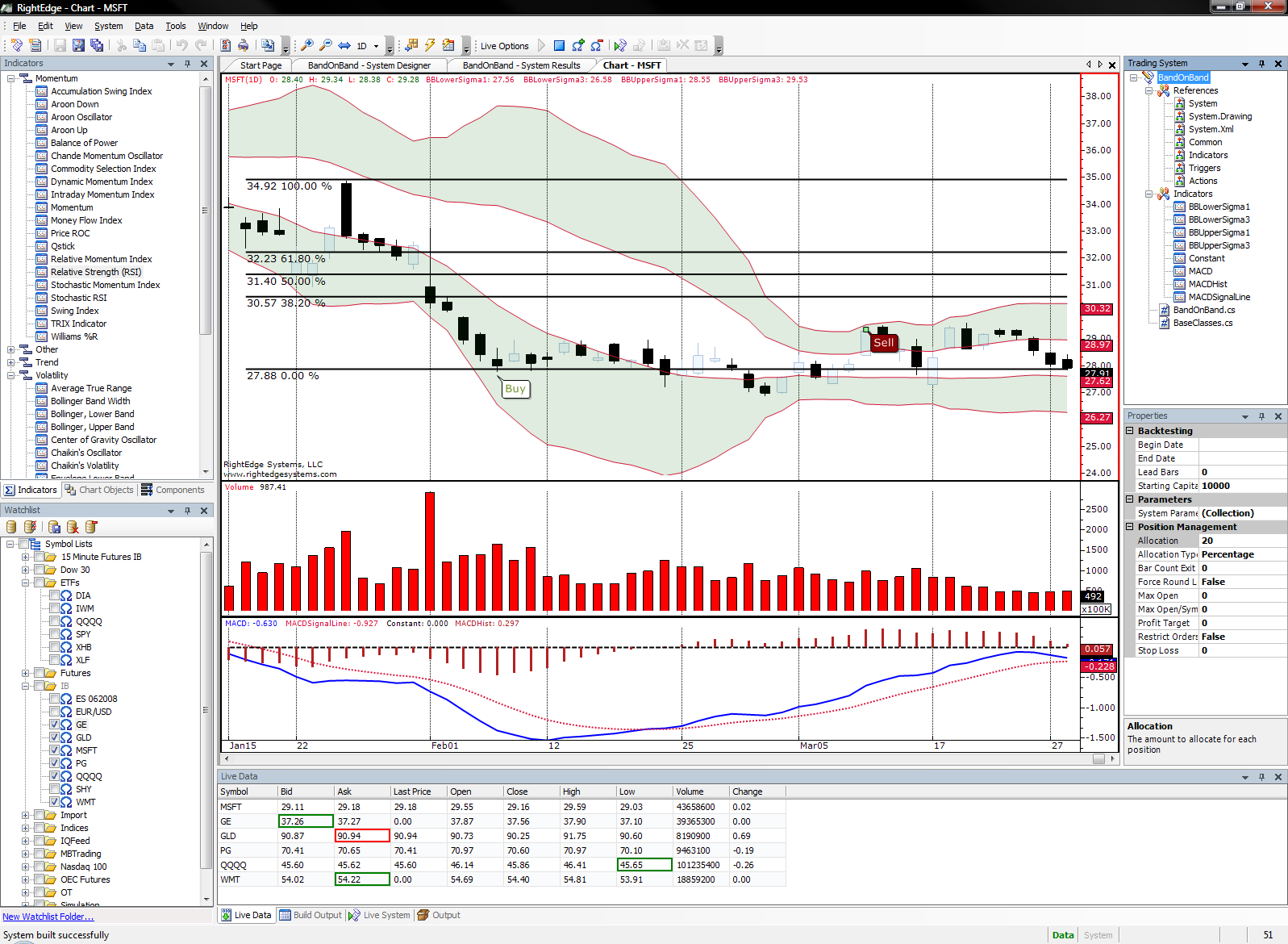
The Watchlist pane is arguably the most important pane in RightEdge. This pane is the central point for collecting historical and live data, backtesting, and starting live systems. The Watchlist groups items together in logical forms as dictated by the user.
RightEdge ships with a couple of watchlist folders defined. The example above shows the power and intuitiveness of the watchlist as the number of symbols increases and the number of trading vehicles increases. Shown above is a collection of indexes, stocks, and forex folders. Some are real time, some are historical. Manipulating and Using Watchlists A folder is created by right clicking any other folder or the top level node in the watchlist. Select New Folder to begin the process and type the desired folder name. Folders can contain any number of folders and a folder can contain any number of symbols. The checkboxes next to each symbol indicate that any action requested will be performed on the selected symbols. For example, to run a simulation on the Nasdaq 100, click the checkbox next to the Nasdaq 100 folder. This will check all symbol items underneath the folder. Individual symbols can be toggled as well. When starting a live system, the selected symbols are loaded into the live data pane and the live system will load these symbols into memory for processing. To add symbols to the newly created folder, right click on the folder and select Configure Folder.
Symbols are added and removed from the Symbols box. Please see the Symbol Folder Settings topic for detailed information. When OK is clicked, the symbol items will be added underneath the folder in the watchlist. Right clicking on a symbol displays a different set of options.
Symbol Information Displays the Symbol Information dialog to configure the individual symbol. Research Symbol This menu is available based on items configured in the Research tab under Options. It allows research to be performed using external resources specific to this symbol. Quick Chart This option will display a vanilla price and volume chart in the document area for the selected symbol. Quick Chart (With Chart Settings) This option is populated when there are previously saved charts available. See Saved Charts for more information. Bar Data Editor Displays the bar data editor for access to the raw price values stored for this symbol. See the Bar Data Editor section for more information. Export Symbol Data Facilitates exporting the raw price and volume data into a text file. Remove Symbol Deletes the selected symbol from this folder. Symbol items can also be deleted under the General tab of the Symbol Folder Settings. Updating Watchlist Data In the case of historical data, the Watchlist can control data updates. For instance, if a watchlist for the Nasdaq 100 was created with a frequency of Daily, at the end of the day it would be necessary to update the data in this folder manually. To do so, use the toolbar located at the top of the Watchlist.
The first button will update all historical data for all symbols indiscriminately. The second button will update the symbols that are checked. The third button will export the raw data for the selected symbols. Data is exported in a tab delimited format in the following order:
See Also Using the RightEdge Environment
|