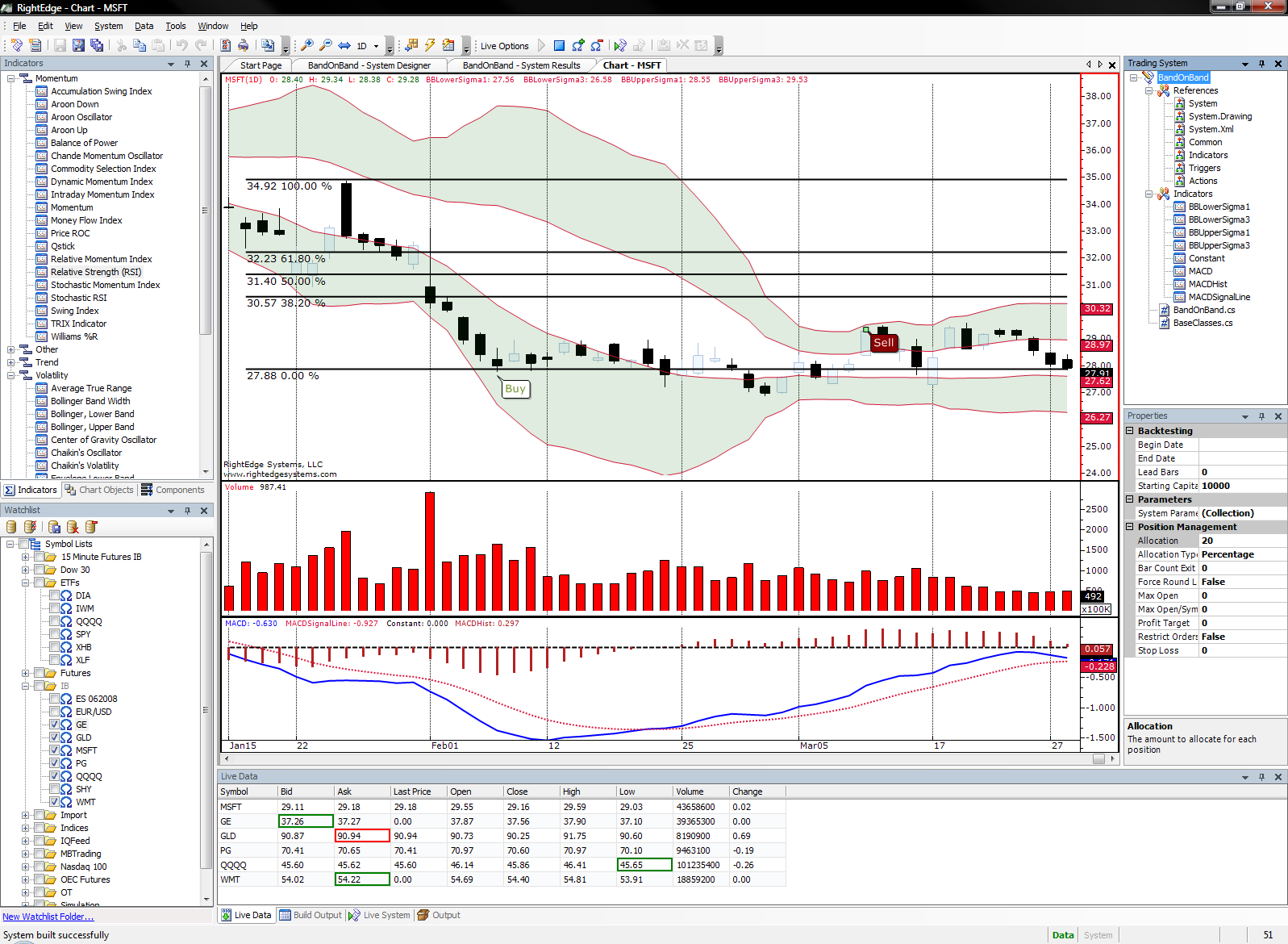
RightEdge - The Ultimate Backtesting and Trading System Development Platform

Trading System Project Properties

Selecting the Properties menu item when right clicking on the project node in the Trading System pane brings up the properties dialog for this system.

Compiler

The compiler tab contains options that are relevant to the compiler.  These are options that are passed to the compiler immediately before the compilation process.

projectproperties

Warning Level Valid settings are level 0 through 4.

Warning Level

Meaning

0

Turn off all warning messages.

1

Only display warning messages that are considered severe.

2

Displays all severe plus selected "less than severe" warnings.

3

Displays all level 2 warnings plus all warnings that are considered more severe than "informational".

4

Displays all warnings including those that are informational.

Treat Warnings as Errors By default, only errors can halt the compile and run process.  If this is set, warnings will also halt the process.

Generate Debug Info If checked, this option causes the compiler to generate debugging information and place it in the output file.


Note: Generating debug information may have some impact on execution speed.

XML Documentation File If specified, XML documentation will be derived from the comments in the source files.  See Using XML Comments for Documentation for more information.


The following class settings are recommended for advanced users only.

System Class This specifies the name of the System class that RightEdge will instantiate when your system assembly is loaded.

Symbol Script Class This specifies the name of the SymbolScript class that RightEdge will instantiate when your system system assembly is load.

Custom System Base Class Allows you to insert your own custom system class in between the base system and the actual system class.

Custom Script Base Class Allows you to insert your own custom script class in between the base SymbolScript and the actual SymbolScript class.

Simulation

The simulation tab contains options that are relevant to running a system against historical data, or "backtesting".

projectpropertiessimulation

Starting Capital The initial amount of capital dedicated to the system.

Allocation per Position Amount of capital put towards an open positions


Percentage

Allocates a percentage of the total portfolio for every position opened.  For example, if the system has a starting capital of $100,000 and the percentage is set to 10%, the first open position would allocated $1,000.  As the account value grows or shrinks, the percentage allocated to each position would also grow or shrink.

Fixed

Allocates a fixed amount to each position regardless of account size.  For example, if system has a starting capital amount of $100,000 and a fixed size of $50,000 per position, the system could only have 2 open positions with an account size of $100,000.  If this dips below $50,000, the system will stop taking trades.

Position Management Controls the number of total number of open positions and/or the number of open positions per symbol.

For example, if the Max Open value was set to 3 and the Max Open Per Symbol was set to 1 and we had the following situation:

2 open positions, 1 for symbol YY and another for symbol XX.  If a buy signal occurred for YY, the trade would be declined because we already have our maximum number of open positions per symbol.  If on the other hand, a signal was generated for symbol ZZ, the trade would be accepted.  However, we have now hit our maximum limit for Maximum Open, so all further trades would be declined until any of the open positions were closed.

Period

The period tab contains options that are relevant to the preloading of a system.

projectpropertiesperiod

Lead Bars The number of bars to load for a simulation before taking trades.  For example, if a system contains a 100 period simple moving average.  100 bars are needed before this calculation produces a value.  In this case, set a lead bar value of 100.

Start Date In simulation mode, specifies the date to begin the simulation.

End Date In simulation mode, specifies the date to end the simulation.

There are additional parameters that exist within the System Properties pane only.

System Parameters This property contains a list of parameters and the associated values as they relate to optimization.  Any number of optimization or system parameters can be added or removed from the list.  These items can then be referenced in the trading system and the Optimization dialog.

Force Round Lots This property will tell the system to only submit orders using round lots (i.e. a share count rounded to the nearest 100).

Restrict Orders This property specifies whether the "maximum open positions" settings should limit the number of position open orders submitted.  For example, if there is a maximum open position setting of two and there is one open position and an additional limit order submitted, if the restrict setting is set to true, any subsequent orders will be rejected until the limit order is cleared.  If it is set to false, open orders are ignored in the count and only truly open positions are counted.

See Also

New Trading System

Trading System Pane