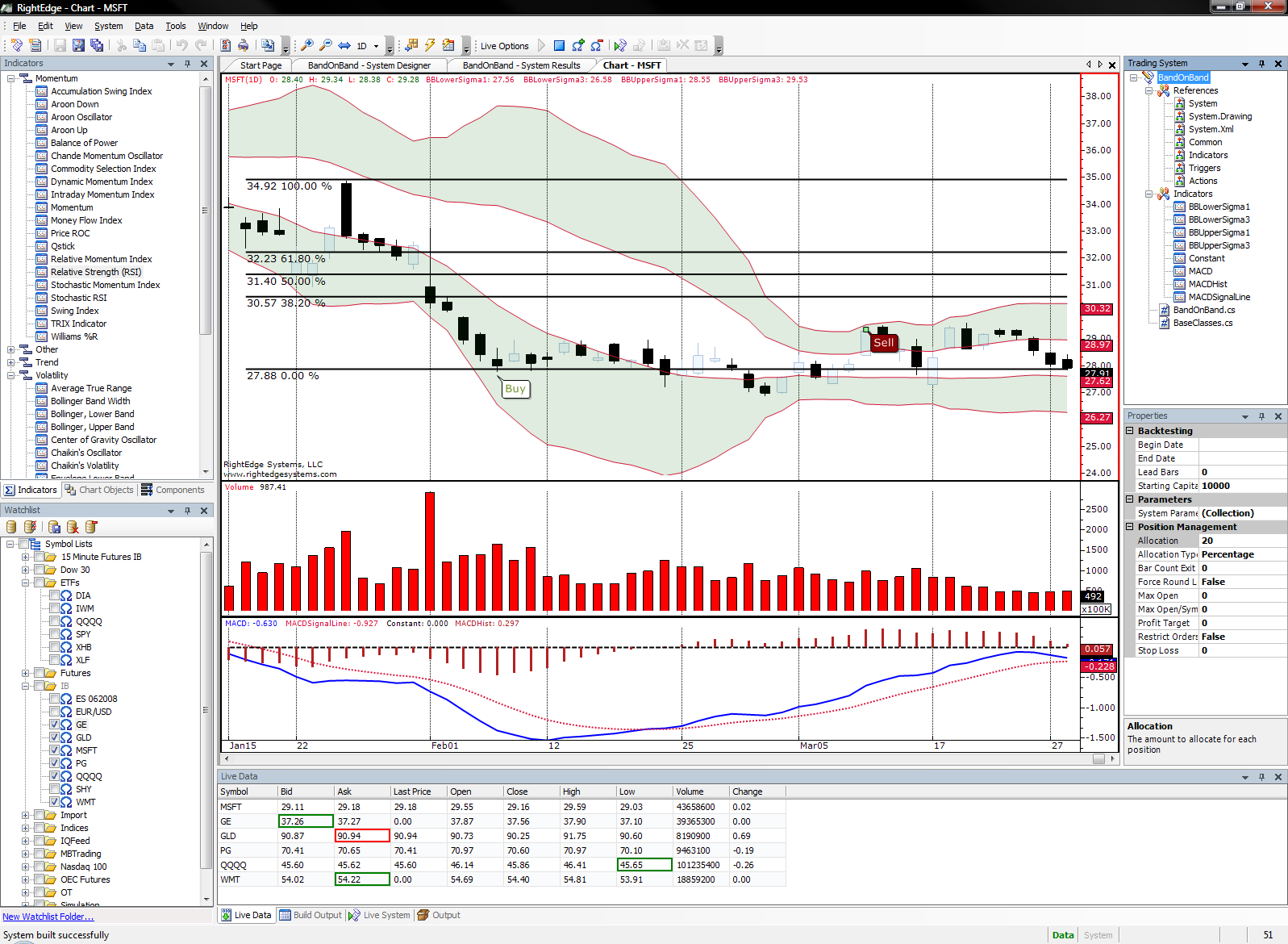
Development Language The current supported languages
are Visual C#
and Visual Basic.NET.
|
Note: If the planned usage for developing this system is
strictly drag and drop then the language is essentially irrelevant. |
Project Name This is the user defined name given to the trading system.
This will also become the name of the project file.
Project Location Specifies the folder on the disk where this project
folder and associated files will be saved.
Browse Click this button to browse for the desired project folder.
As each of the project items are changed in this dialog, the text at the bottom
is updated to reflect the fully qualified directory of this project.
Once the system is created, the source file will exist in the Trading System
pane. If the Trading System pane is not visible, you can show it by selecting
Trading System from the View menu. Open the system code
by double clicking on the .cs or .vb file. By default, RightEdge will create
two typically used overrides.
Startup
Startup is called by RightEdge before the system begins executing. Startup
is used to do one time initializations or object creations. For example, this
is a good place to create indicators, user series or setup system wide variables.
NewSymbolBar
This function is called each time a new bar is constructed and
per symbol. For example, if you're running a simulation or real time system
and you're running this for multiple symbols, this function will get called for
each symbol you've selected. If I'm running against 100 symbols, this function
will get called 100 times on each bar. At this point, we can retrieve symbol
specific information such as indicator values, as shown above. This is also
where we want to determine whether or not to place an order.
NewTick (now shown)
NewTick is called during real time processing. Each and every time tick data
is received, this function is called. If you have data at greater than a tick
(1 minute bars for example), this is still considered a "tick" to the system.
On ticks, you may want to make lower level decisions such as dynamic orders and
profit targets based on real time conditions.
Finally, to build and run your system, select Compile from the System
menu. This will alert you to any syntax errors that may exist in the code.
If the system builds successfully, it can now be used to run a simulation or live
system.
To begin running either a simulation or live system, you must select one or more
symbols from the Watchlist. To run a trading system simulation, select the
symbols and then select Simulation from the System menu.
Back to the top
Back to the Main FAQ
Adapting a sample system
RightEdge ships with a number of sample systems and there are new systems available
for the purpose of examples and education available on the RightEdge web site.
You can find the sample systems that ship with RightEdge in the Samples\Systems
directory. Samples on the RightEdge web site can be found
here.
The first step in modifying an existing system is to download and potentially extract
the archived system (if it is in .zip format). A typical system will contain
a .rep file. This is the RightEdge project file. It contains settings
about the system as well as information about the source files that are contained
within. In addition to a .rep file, the source files that comprise the system
are also included. Once the system is on your local machine, open RightEdge
and select Open Trading System from the File menu. Navigate
to the .rep file and double click this file to open the Trading System project.
Open the system code by double clicking on the .cs or .vb file. Modify the
existing with your changes.
Finally, to build and run your system, select Compile from the System
menu. This will alert you to any syntax errors that may exist in the code.
If the system builds successfully, it can now be used to run a simulation or live
system.
To begin running either a simulation or live system, you must select one or more
symbols from the Watchlist. To run a trading system simulation, select the
symbols and then select Simulation from the System menu.
Back to the top
Back to the Main FAQ
Sending information to the output pane
The output pane in RightEdge serves the purpose of informing the system operator
that something has happened. The content of the output as well as the severity
is typically at the discretion of the system developer. The output pane is
also very handy for trading system developers to debug by placing debug information
in the output pane.
string myMessage = "You'll see me in the output pane";
SystemData.Output.Add(OutputSeverityLevel.Informational, myMessage);
In this case, the output severity is informational. For more information about
the OutputSeverityLevel enumeration, see the
OutputSeverityLevel in the
developer's reference.
Back to the top
Back to the Main FAQ
Getting filled information
for an order
Live orders happen asynchronously. It would be a rotten user experience if
RightEdge waited to hear back from a broker after submitting an order. To
facilatate a better experience, RightEdge instead uses events to communicate order
information back to the system. This way the system can continue processing
and respond only when an order has changed.
When an order is filled, the PositionManager.OrderFilled event is fired. The
code below shows you how to hook your system up to the OrderFilled event.
C#
public override void Startup()
{
// Set up event handler for 'filled' action.
PositionManager.OrderFilled += new PositionManager.PositionOrderFilledDelegate(OrderFilled);
}
private void OrderFilled(Trade trade, Position pos, Position.State state)
{
// Handle a fill here.
}
The same sample in Visual Basic.NET
Public Overloads Overrides Sub Startup()
AddHandler PositionManager.OrderFilled, AddressOf OrderFilled
' Set up event handler for 'filled' action.
End Sub
Private Sub OrderFilled(ByVal trade As Trade, ByVal pos As Position, ByVal state As Position.State)
' Handle a fill here.
End Sub
Back to the top
Back to the Main FAQ
Getting additional order information
Live orders happen asynchronously. It would be a rotten user experience if
RightEdge waited to hear back from a broker after submitting an order. To
facilatate a better experience, RightEdge instead uses events to communicate order
information back to the system. This way the system can continue processing
and respond only when an order has changed.
The above example demonstrated handling the event when the order was filled.
Hopefully, this is the majority of the cases, however, there are some instances
where something goes wrong or cases where an order is not filled for legitimate
reasons (not enough funds, invalid order information, etc). In these cases,
the OrderUpdated event should be wired.
C#
public override void Startup()
{
// Wire the OrderUpdated event.
PositionManager.OrderUpdated +=
new PositionManager.PositionOrderUpdatedDelegate(PositionManager_PositionUpdated);
}
public void PositionManager_PositionUpdated(PositionManager.TradeOrderAndOrder to,
Position pos, Position.State state,
string information)
{
// Get information on an updated position/order
}
Visual Basic.NET
Public Overloads Overrides Sub Startup()
AddHandler PositionManager.OrderUpdated, AddressOf PositionManager_PositionUpdated
' Wire the OrderUpdated event.
End Sub
Public Sub PositionManager_PositionUpdated(ByVal [to] As PositionManager.TradeOrderAndOrder,
ByVal pos As Position,
ByVal state As Position.State,
ByVal information As String)
' Get information on an updated position/order
End Sub
Back to the top
Back to the Main FAQ
Getting the highest high
or lowest low
Getting information about bars has been simplified with the
BarUtils class (online
developer's reference). There are two functions that perform the
specific tasks of getting the highest high or lowest low within a range of bars.
Conveniently enough, their names are
HighestHigh and
LowestLow. Both functions have two overloads. The first
overload takes only a bar collection. This will return the highest high or
lowest low for the entire bar collection. The second overload will allow you
to limit the range that is evaluated.
The sample code below will find the highest high and lowest low for the last 10
bars.
C#
public override void NewSymbolBar(Symbol symbol, BarData bar)
{
// Get our bar collection for this symbol
List<BarData> bars = SystemData.BarCollections[symbol];
// Make sure we have at least bars
if (bars.Count > 10)
{
double highestHigh = BarUtils.HighestHigh(bars, bars.Count -
11, 10);
double lowestLow = BarUtils.LowestLow(bars, bars.Count -
11, 10);
}
// This line of code runs the actions you have set up in in the Project Form
Actions.RunActions(symbol);
}
VB.NET
Public Overloads Overrides Sub NewSymbolBar(ByVal symbol As Symbol, ByVal bar As BarData)
' Get our bar collection for this symbol
Dim bars As List(Of BarData) = SystemData.BarCollections(symbol)
' Make sure we have at least bars
If bars.Count > 10 Then
Dim highestHigh As Double = BarUtils.HighestHigh(bars, bars.Count -
11, 10)
Dim lowestLow As Double = BarUtils.LowestLow(bars, bars.Count -
11, 10)
End If
' This line of code runs the actions you have set up in in the Project Form
Actions.RunActions(symbol)
End Sub
Back to the top
Back to the Main FAQ
Getting previous bars
Getting information about previous bars is often a requirement. NewSymbolBar
only contains the current bar, but it is possible to get the entire bar collection
as it currently exists.
Note: RightEdge does not allow looking forward. If you're
running a simulation, your system will only have access to bars that have already
been made available.
The sample code below demonstrates accessing the entire bar collection.
C#
public override void NewSymbolBar(Symbol symbol, BarData bar)
{
// Get our bar collection for this symbol
List<BarData> bars = SystemData.BarCollections[symbol];
// Make sure we have at least 2 bars
if (bars.Count > 2)
{
// Let's get yesterday's close
double yesterdaysClose = bars[bars.Count - 2].Close;
double difference = bar.Close - yesterdaysClose;
}
// This line of code runs the actions you have set up in in the Project Form
Actions.RunActions(symbol);
}
VB.NET
Public Overloads Overrides Sub NewSymbolBar(ByVal symbol As Symbol, ByVal bar As BarData)
' Get our bar collection for this symbol
Dim bars As List(Of BarData) = SystemData.BarCollections(symbol)
' Make sure we have at least 2 bars
If bars.Count > 2 Then
' Let's get yesterday's close
Dim yesterdaysClose As Double = bars(bars.Count - 2).Close
Dim difference As Double = bar.Close - yesterdaysClose
End If
' This line of code runs the actions you have set up in in the Project Form
Actions.RunActions(symbol)
End Sub
When a system is first created, there are two overrides that are already handled
for you. These are Startup() and NewSymbolBar(). However, there is one
more override that is available and it is used for processing data at the tick level.
NewTick is called during real time processing.
Each and every time tick data is received, this function is called. If you
have data at greater than a tick (1 minute bars for example), this is still considered
a "tick" to the system. On ticks, you may want to make lower level decisions
such as dynamic orders and profit targets based on real time conditions.
The following code snippet shows how to override NewTick.
This section covers both adding and removing shares or contracts from an existing
position. The key functions that make this happen are
AddToPosition and
RemoveFromPosition. Both functions can be found in the
PositionManager class.
The code below will add to an existing position if it has been open for more than
10 bars. It will then add 10 shares. Then it will remove half the position.